
Creator Guide: How to Add Products to Your Showcase
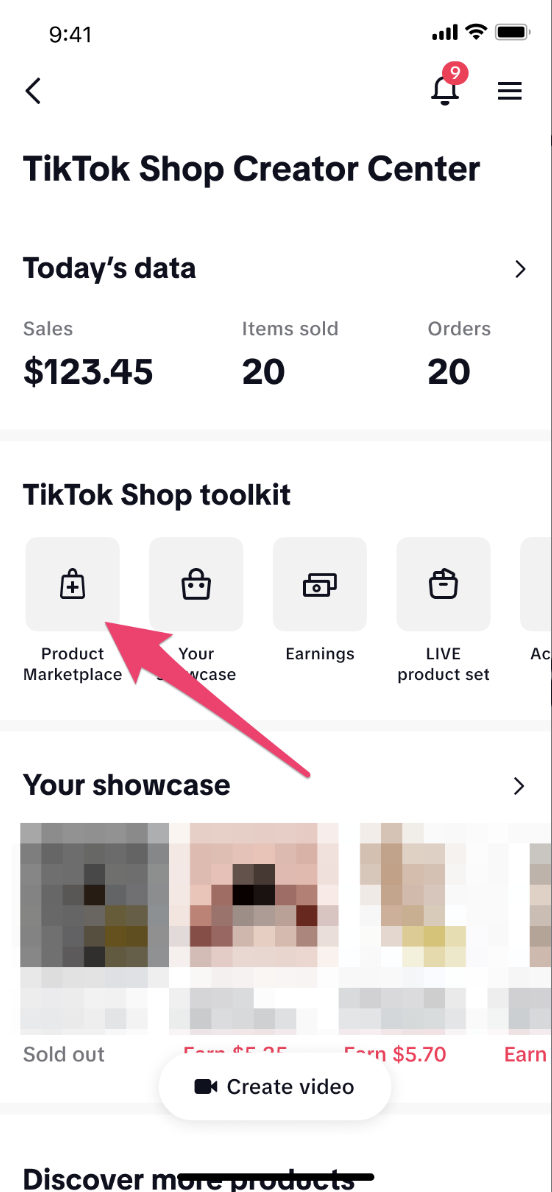
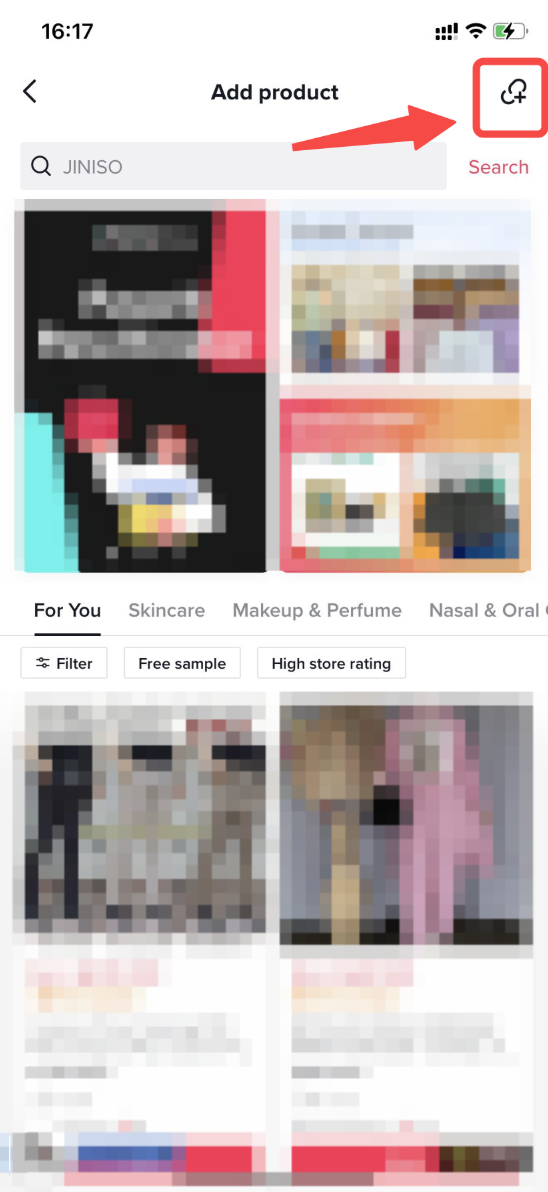
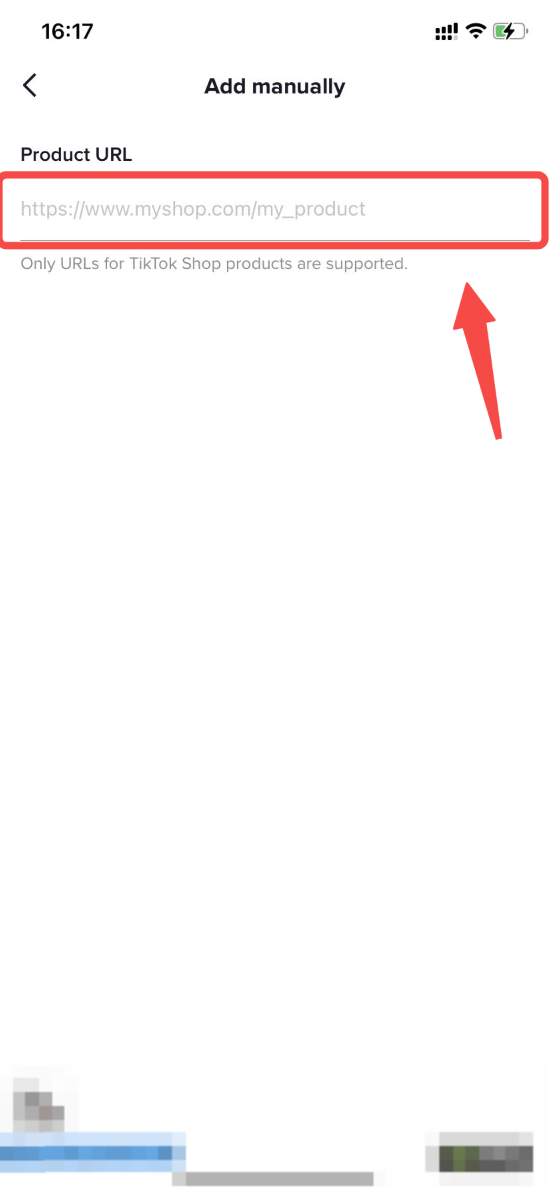
Step 1: Once you receive the link, go to TikTok Shop, tap Add Product, then tap the link icon in the top right. Paste the link into the Product URL field.
Step 2: Once you open the product link, tap Add to Showcase and agree to the terms and conditions to join the affiliate campaign.
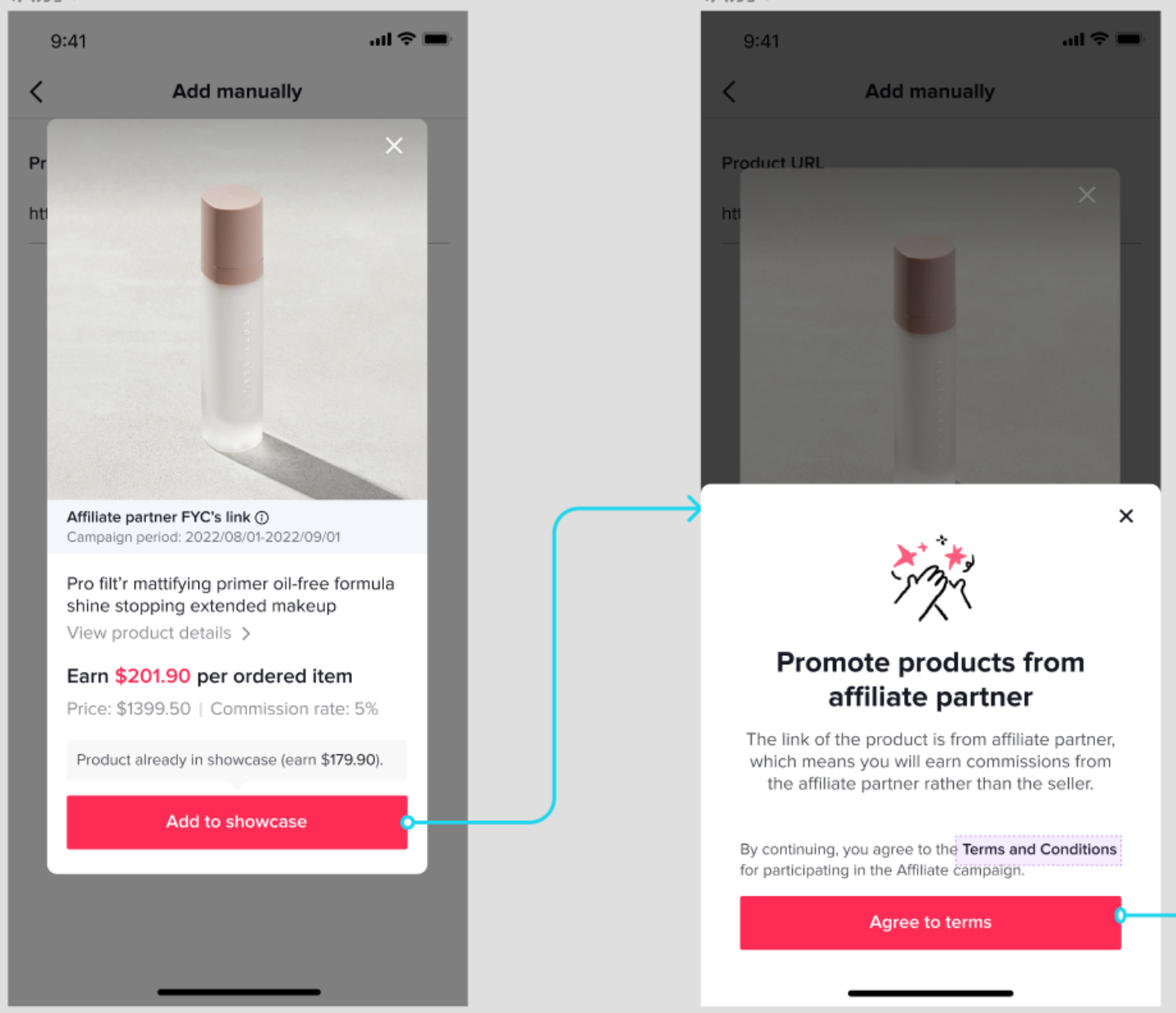
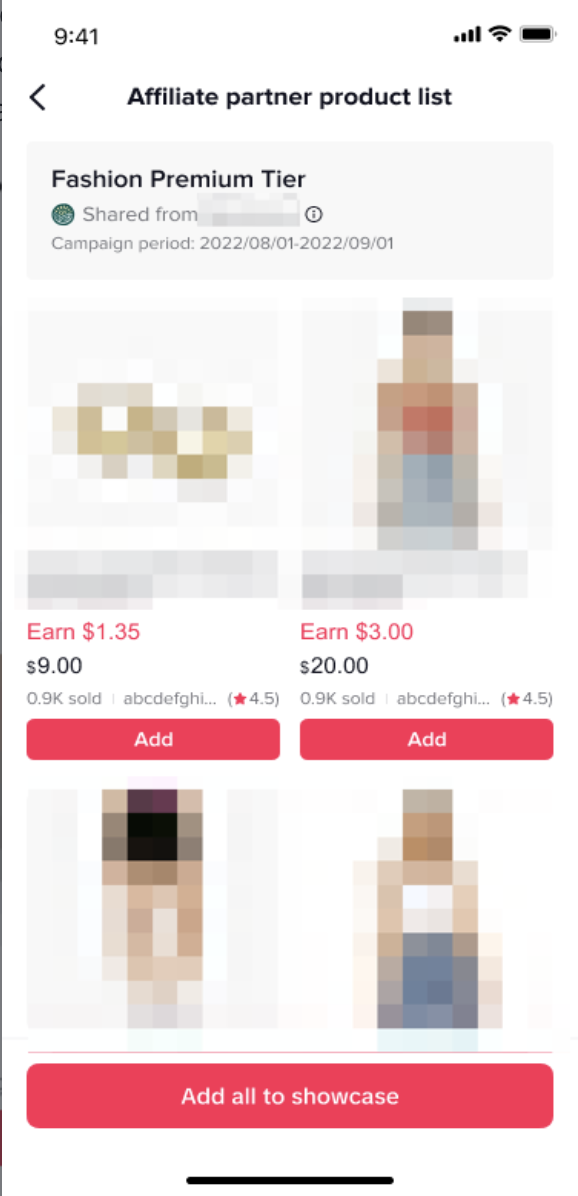
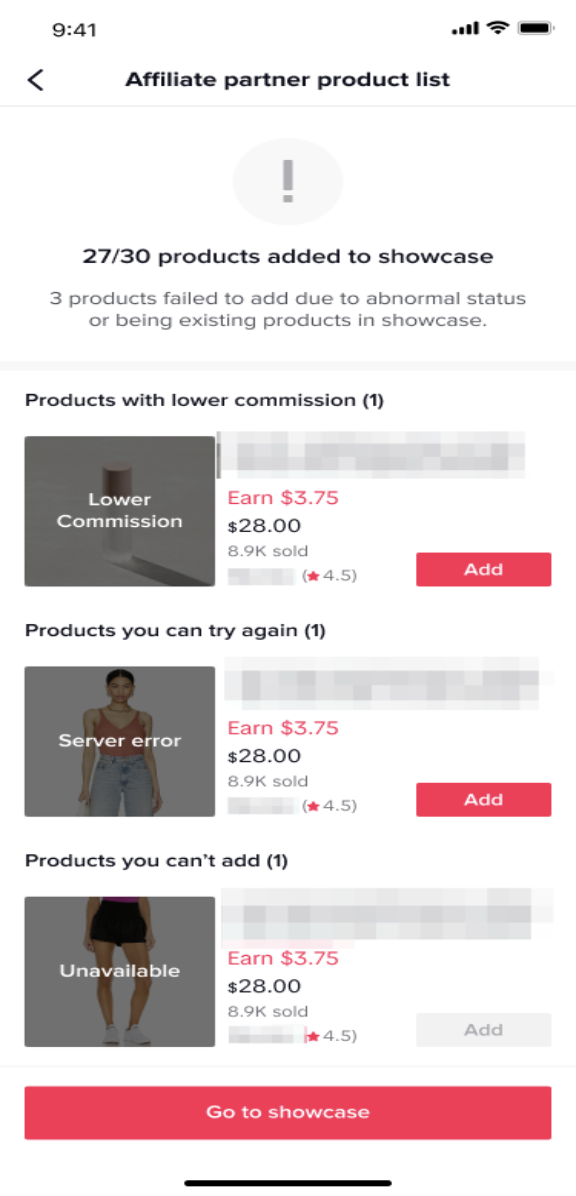
Step 3: If you receive a product list link, open it and accept the terms and conditions. You’ll see all the products included in the campaign. From there, you can either add all products to your showcase or select them individually. Click into any product to view details and confirm the commission rate, then tap Add to Showcase. The commission shown is the rate you’ll be paid through the agency—not the seller.
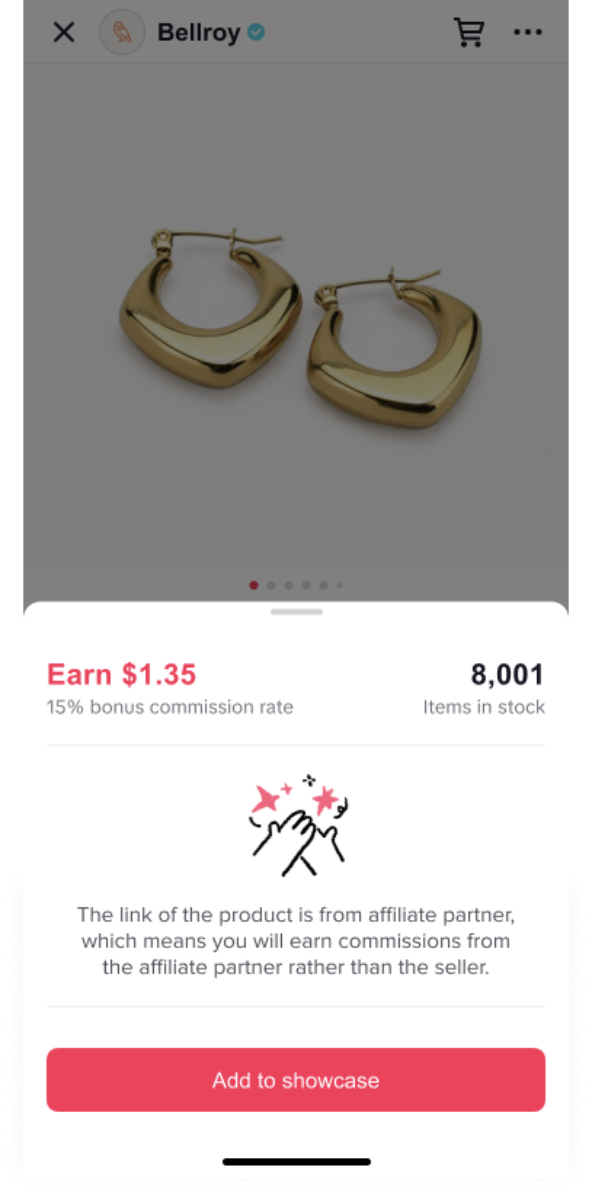
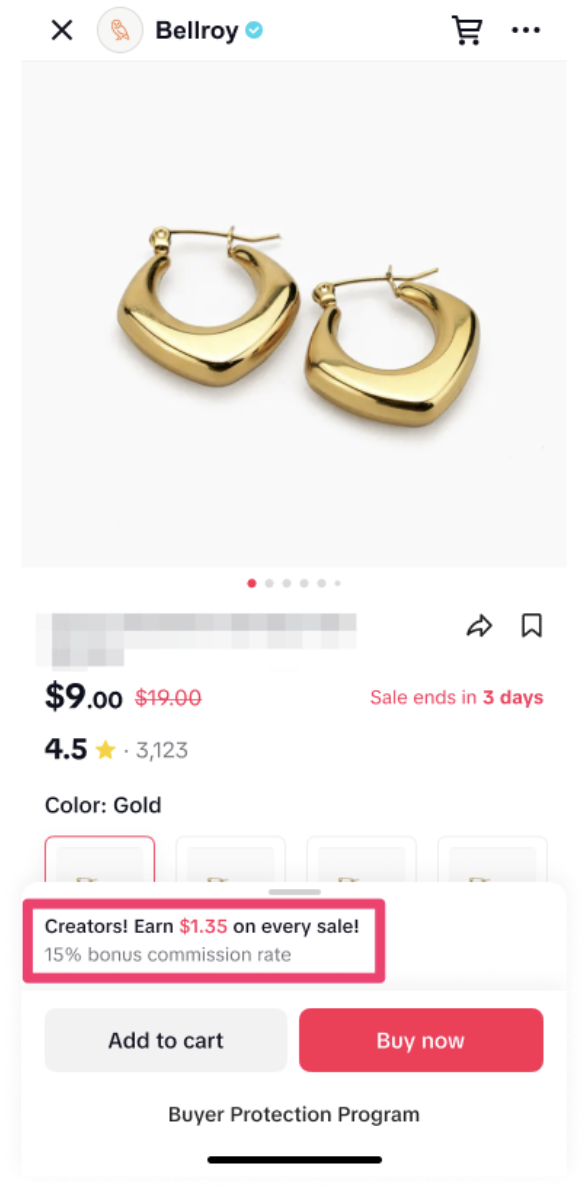
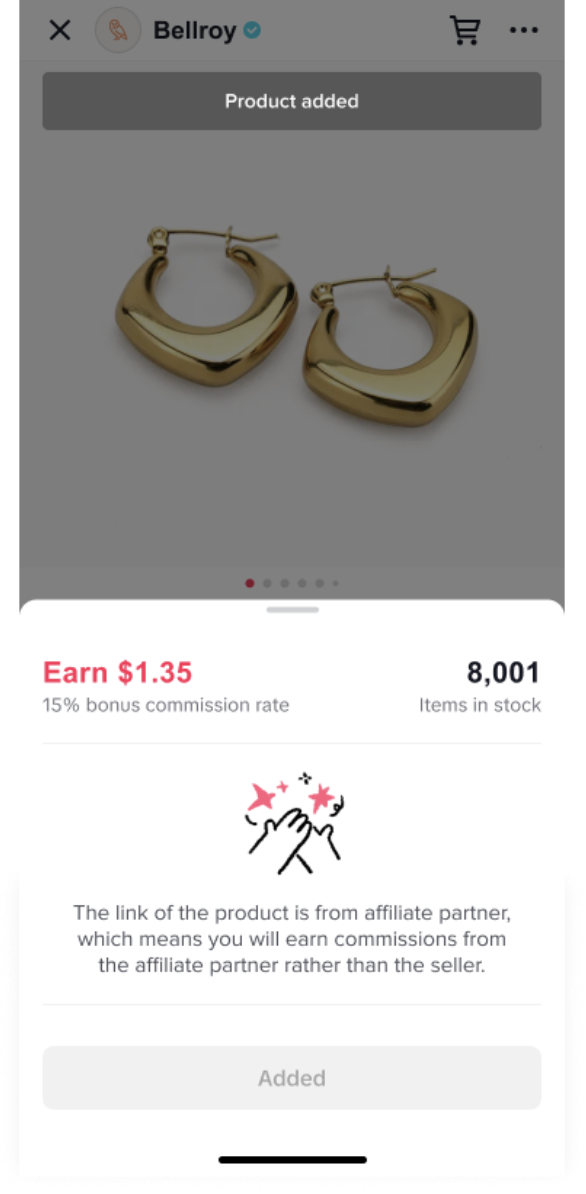
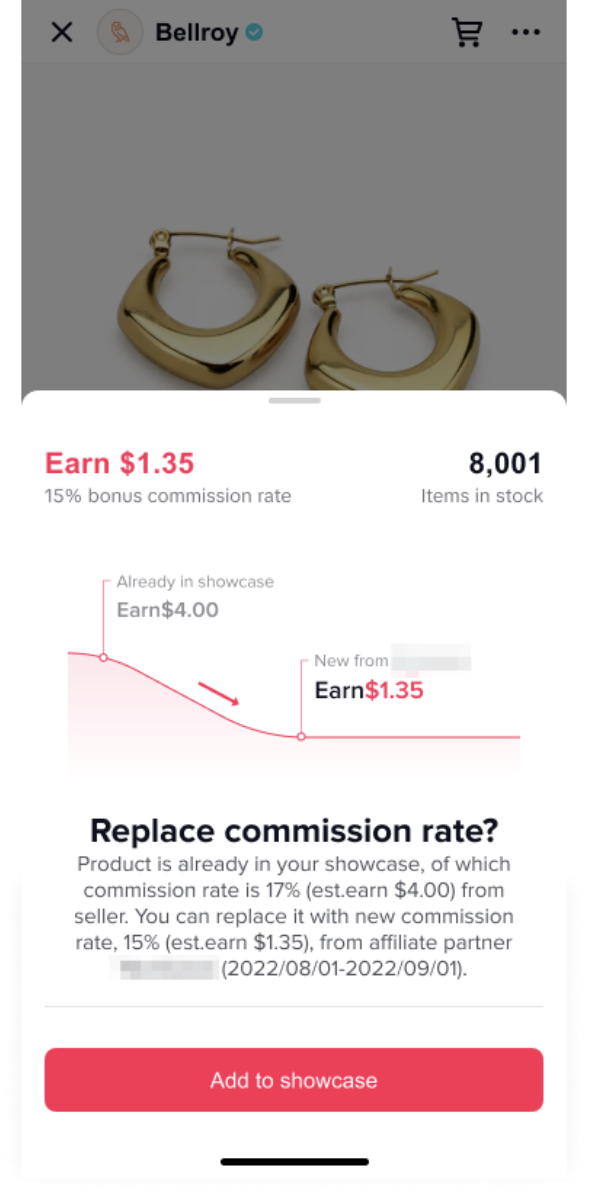
Step 4: If the commission in this campaign is lower than what you’re currently earning for a product, you’ll see a warning that your commission will decrease before adding it to your showcase.
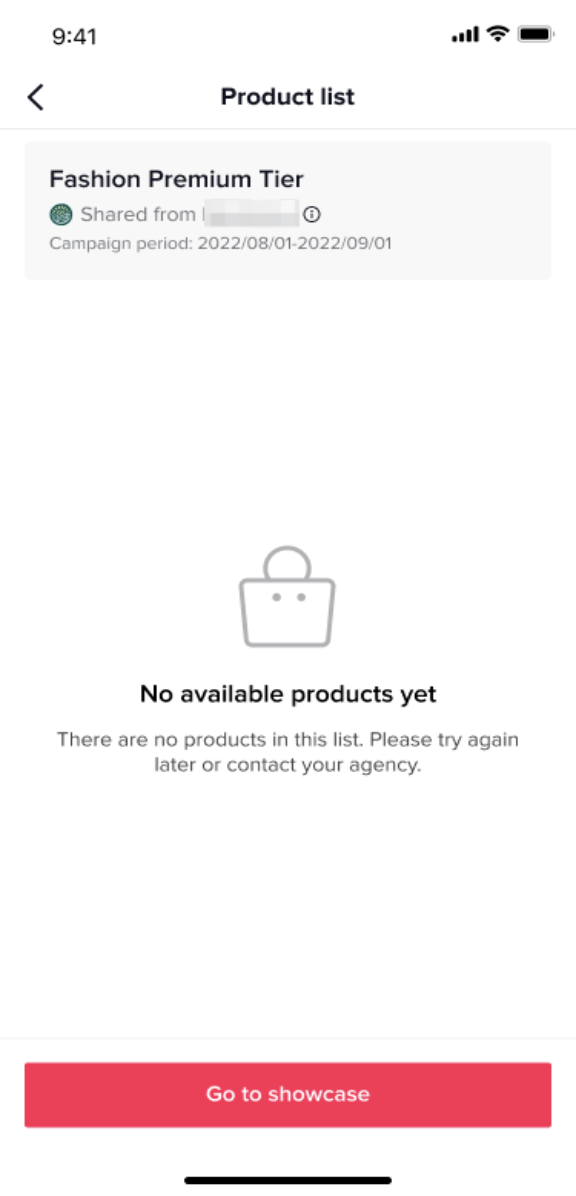
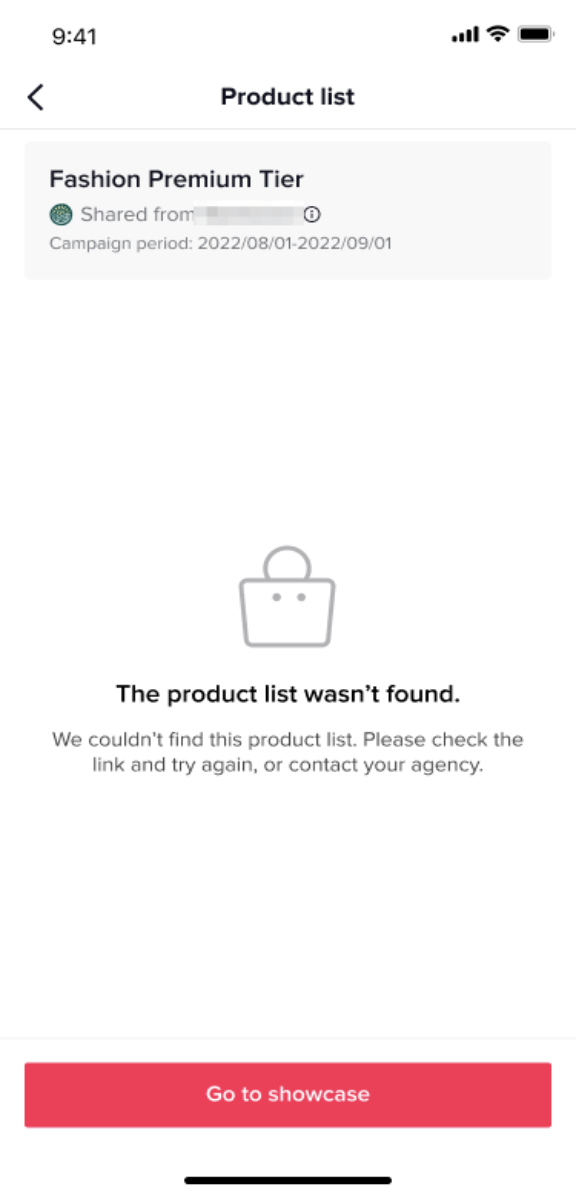
Step 5: If after entering a link, a Creator receives a No available products yet or The product list wasn't found message, it means that the campaign does not have any products in it yet or that the agency has deleted the product or list.
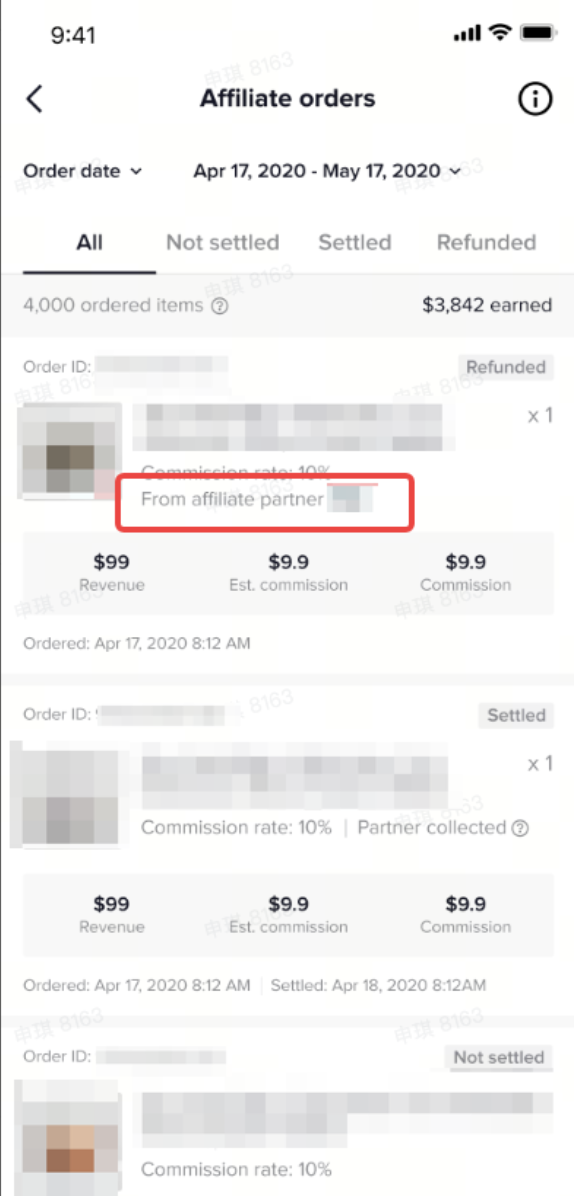
Step 6: In the Affiliate orders page, you will be shown when a sale and commission is from an agency-led campaign.